
TABLE OF CONTENTS
Overview
An extract is an encoded and compressed form of a source file. It is distributed to Browser users so that they can quickly design and produce their own multi-dimensional tables without you, the Builder user, having to anticipate their needs.
In this section, we will explore the step-by-step procedures needed to create a Beyond 20/20 extract using a CSV file as our source data. Before you begin, unzip the files in the attached .zip file to a folder, Example3FilesToBuildExtractFromCSV.zip
Opening a CSV
Building an Extract from Multiple CSV Files is similar to building an Extract from a single CSV File. The only difference is that you set the Input Path to a path that uses wildcard characters to match more than 1 file.
Note: All The CSV Files must have the same fields and the same field order
It is important to note that extracts cannot be updated. If you want to add more data to an extract, you will need all the original files that you used to build it and then add the new file that you want to use to update the extract.
This exercise shows you how to create an extract from an CSV source file. We will open a CSV source file, describe its source fields, and then create and document the extract.
When the source file is CSV, the Builder does not know the field types and treats all fields as text fields. You have to Set Field Information for each numeric or date column.
- Before you begin, unzip the files in the attached .zip file to a folder, Example3FilesToBuildExtractFromCSV.zip
To open a CSV source file:
- Do one of the following:
 - Click the Open button on the toolbar.
- From the File menu, choose Open.
The Open dialog box appears.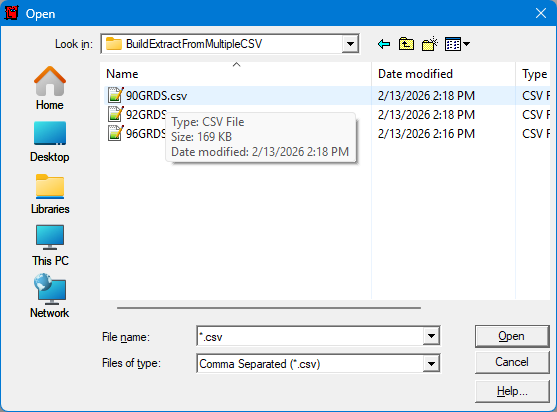
- In the Files of type area, select Comma Separated (*.csv).
- In the File name area, select 90GRDS.CSV
Note: If you do not see 90GRDS.CSV listed, you can search for it in a different drive and directory. - Click Open.
An untitled, empty table view appears.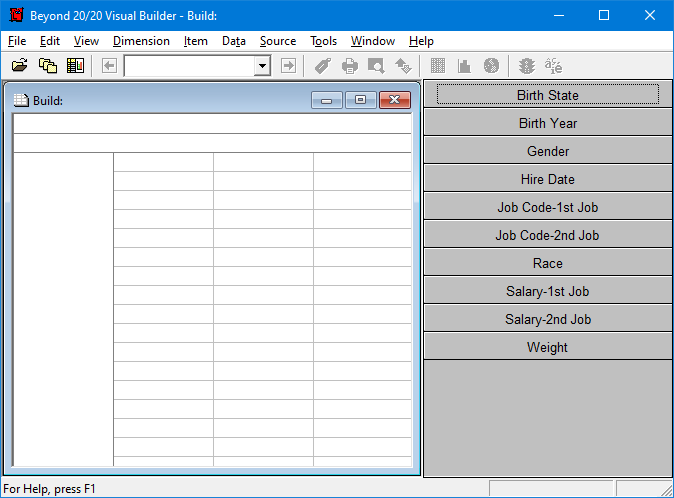
Now you can set the input path so that the extract will be built from multiple files.
Setting an Input Path
You can set an Input Path to identify a single source file or multiple files that will be used to create an extract.
- In the Source menu, choose Input Path. The Set Input Path dialog box appears:
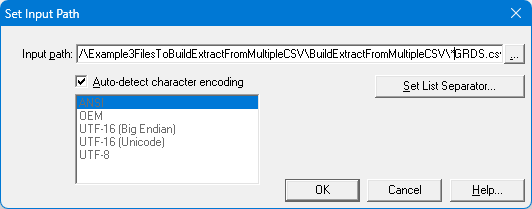
Note: The Input Path may contain the MS-DOS wildcard characters * and ?, and it must refer to at least one existing file.
Notes on wildcards:- An asterisk (*) replaces any number of characters. For example, *.csv locates every file in a folder whose extension is .csv.
- A question mark (?) replaces exactly one character. For example, test?.csv locates such files as test1.csv, test2.csv, and test7.csv, but not test.csv or test11.csv.
- Do one of the following:
- In Input Path, enter the path and file name of the source file.
- Click the browse button to locate and select the source file.

- In the Input path area, enter *GRDS.csv
- Click OK.
Now you can set the field information for source fields that are not character or strings and all the other tasks before creating your extract. For more information see How To Create An Extract (IVX) From a CSV File.